
Show tax the way your business quotes it.
Choose how tax should appear on future estimates and review the customer-facing result before saving the setting.
Review tax settings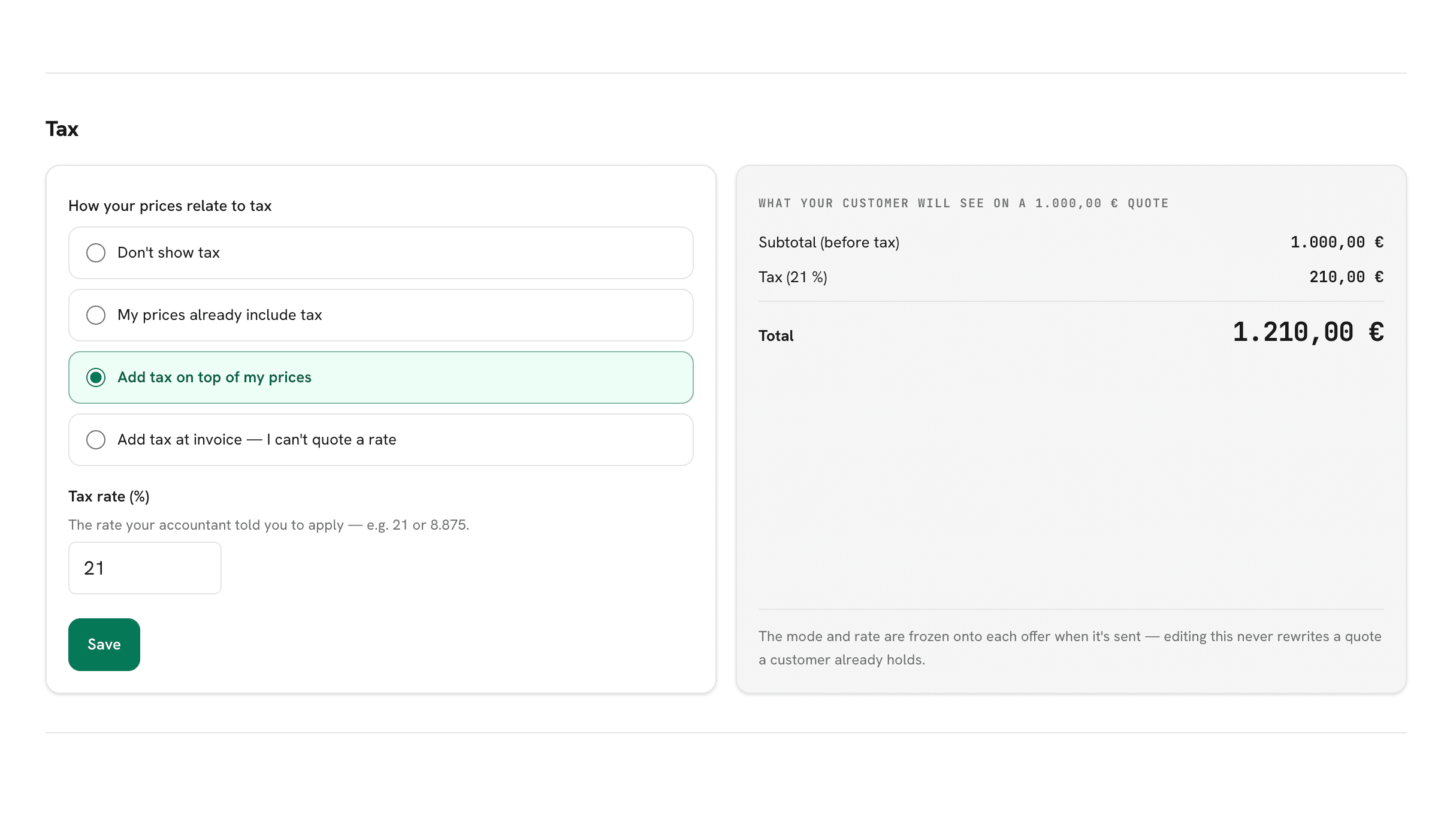
Choose the right presentation
Prices already include tax
Use this when the range shown to the customer is the final tax-inclusive amount.
Add tax separately
Use this when your business normally presents a subtotal, the sales tax amount, and a total.
Apply tax later
Use this when the applicable rate cannot be confirmed during the initial estimate.
Do not show tax
Use this when tax is not part of the initial customer-facing range.
Review what the customer will read.
The preview shows how a sample estimate will present the range and tax information. Confirm the language and numbers with your accountant before making the setting public.
A settings change should not alter an estimate already sent.
Updated tax settings apply to future estimates. Existing customer estimates remain as they were issued.
Which option should I choose?
Use the option that matches how your accountant has instructed the business to present prices and tax.
Can different markets use different wording?
Yes. The Spain and US customer experiences use the terminology appropriate to each market.
Will a tax change alter old estimates?
No. Existing estimates remain unchanged.
Sign in to open this area of your account.
Review tax settings